
- The server must be Offline first. Stop the server before you change the game. If it is running, stop it and wait until the status shows Offline.
- Reinstalling deletes ALL server files. Worlds, configs, plugins, uploads - everything on the server is removed so the new game can be set up cleanly. If you want to keep anything, download a backup from Backups (or Files) before you switch.
Step 1: Open your server
Log in to the panel and, on your server card, click Manage server to open the server control page.
Step 2: Go to Settings
How you open Settings depends on your device:
- On mobile: tap the 3 dots (menu) and select Settings.
- On PC: in the left sidebar, under CONFIGURATION, click Settings.
Step 3: Find the Egg Changer section
Scroll down in Settings until you find the Egg Changer section. It has a dropdown that says Select an egg to change to and a Switch Egg button.
Step 4: Select your new game
Open the dropdown and choose the game you want to install - for example Vanilla Bedrock, Vanilla Minecraft, Palworld, Rust and many more. Select the game, then click Switch Egg.
Step 5: Enable both options in the popup
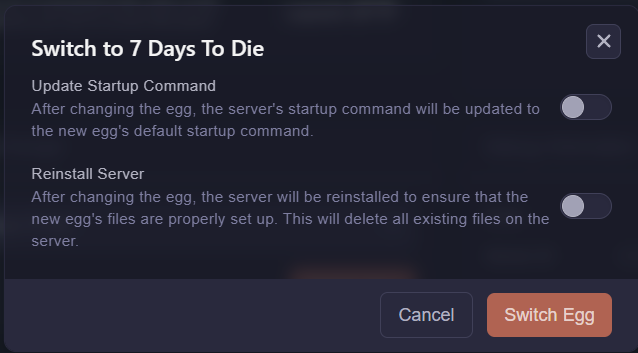
A popup appears asking you to confirm the switch. Turn ON both toggles before confirming:
- Update Startup Command - updates the server startup command to the new game's default. Always turn this ON when changing games.
- Reinstall Server - reinstalls the server so the new game's files are set up properly. This deletes all existing files on the server. Turn this ON too.
Step 6: Switch and wait
Click Switch Egg and wait. The server reinstalls for the new game - this takes a few minutes. Do not close the panel or start the server while it is switching. When the reinstall finishes, your new game is installed and you can start the server and play.